Kristiana Druseiko

Call script feature for telephone fundraising SaaS

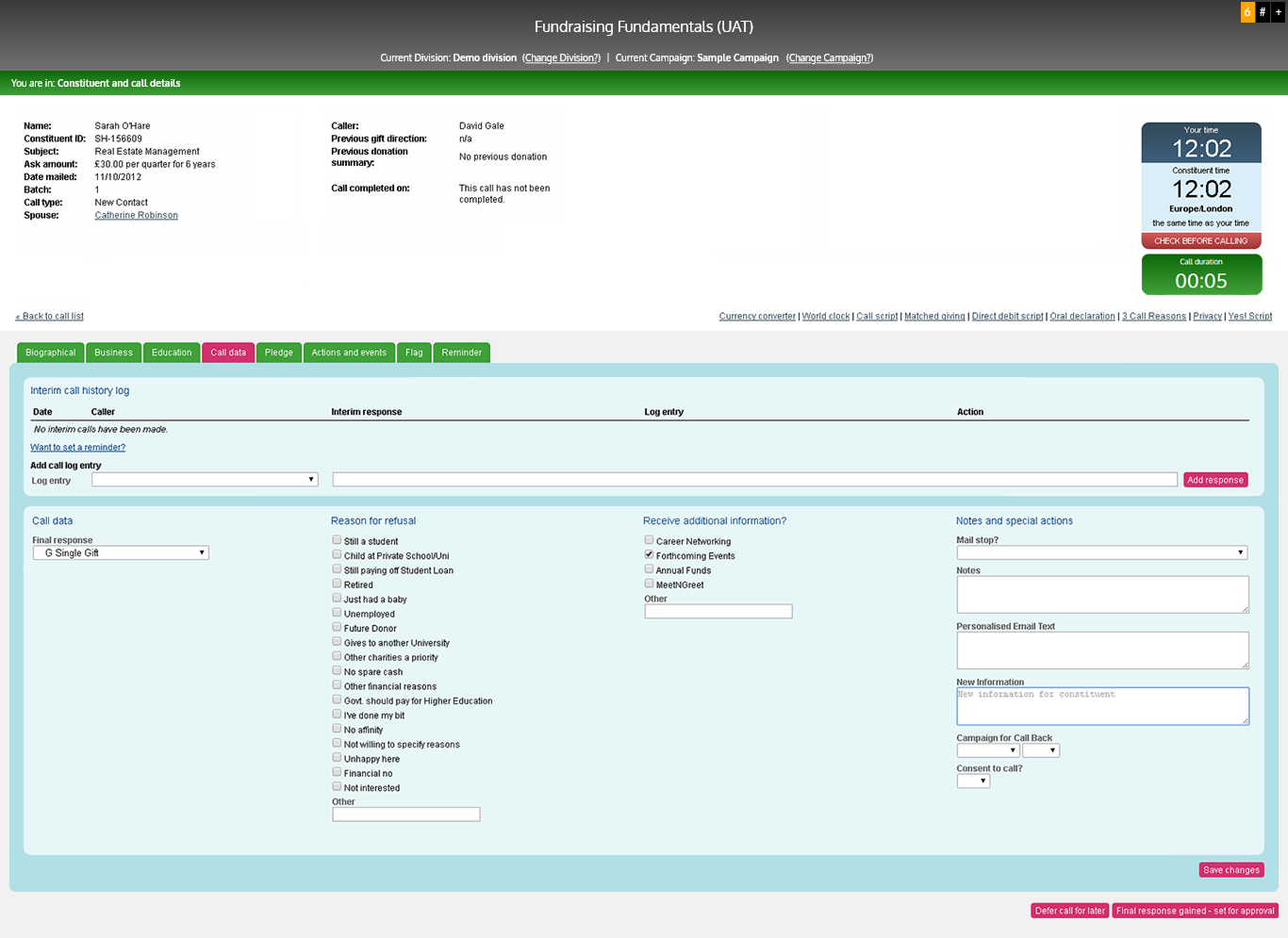
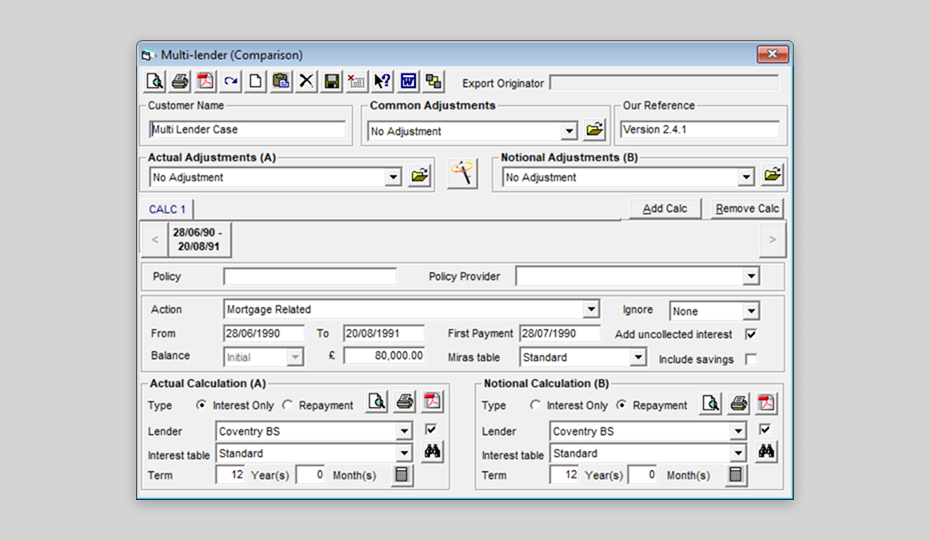
Before

Click to expand

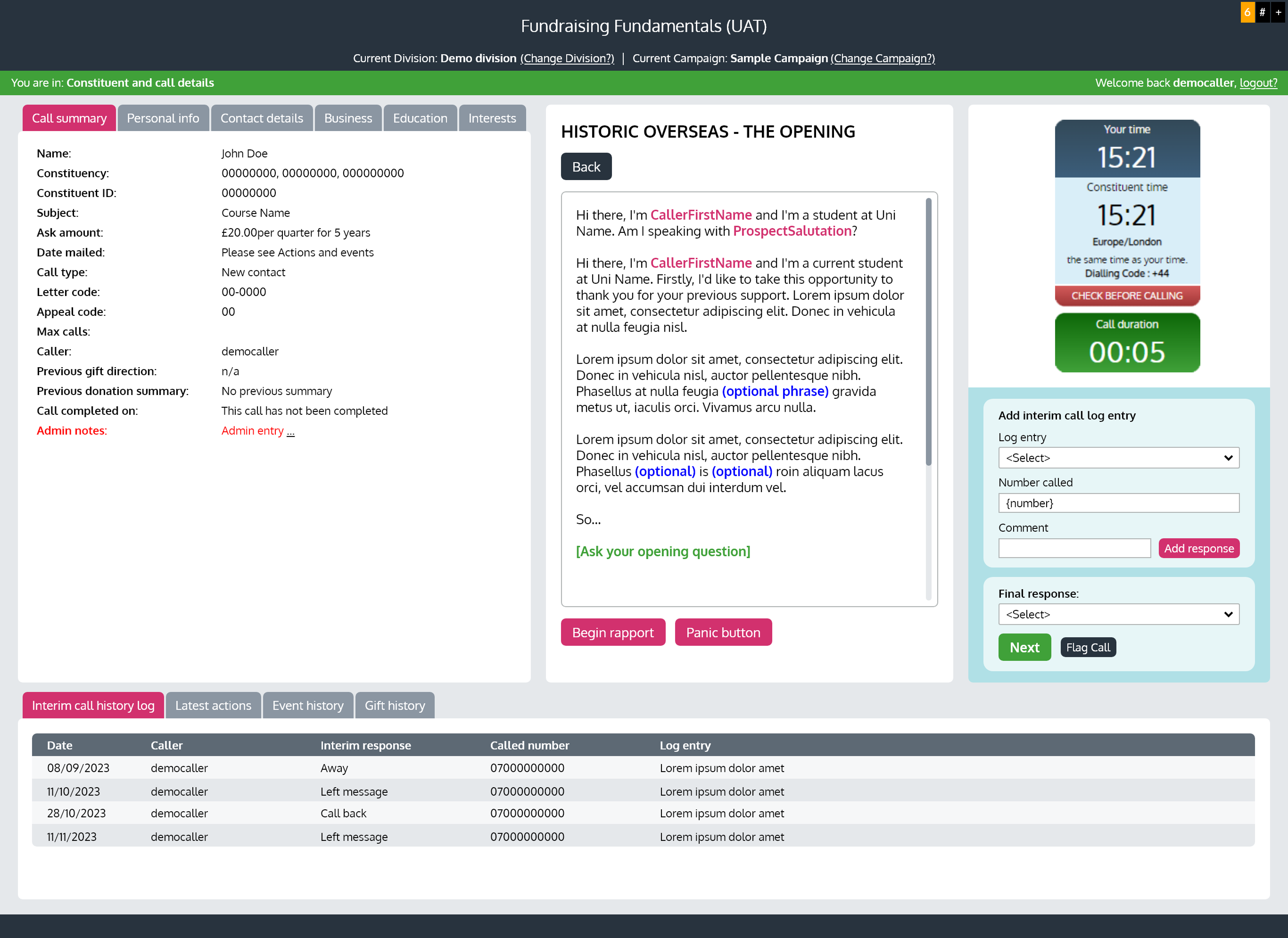
After

Improved layout

Simplified user & task flows

Added scrip feature

My role

Sole UX Designer, responsible for:

  • Stakeholder workshop
  • Heuristic analysis
  • Competitive analysis
  • User research
  • Data synthesis
  • Redesigning user & task flows
  • Wireframing
  • Prototyping & user testing

Project team

  • UX Designer (me)
  • 2 Back-End Developers
  • Project Manager

Duration

Feb 2023 – Jun 2023

Overview

F2Uni is a call management SaaS used by charities, schools and universities across the UK to support their fundraising efforts.

Problem

An existing user, a fundraising manager at a leading UK university, reached out to the company to discuss whether we could collaborate to introduce new script functionality to the call screen.

Their student calling team was relying on a paper binder to read scripts during calls, which the fundraising manager observed disrupted conversations with constituents and hindered campaign progress.

Objectives

My primary objective was to design a call script feature and integrate it seamlessly into the call screen.

I also used this opportunity to identify and address usability issues on the call screen through heuristic analysis and user research, with the goal of improving student caller task efficiency.

Impact

Student callers reported feeling more confident and focused

when using the new on-screen scripts and improved constituent information structure, helping them stay engaged in conversations.

Estimated 20% increase in calls completed per day

during the new campaign, suggesting that the new on-screen scripts and streamlined task flows increased caller task efficiency.

Reduced training time for new student callers

as the improved interface and new on-screen scripts made the call process more straightforward, according to the fundraising manager.

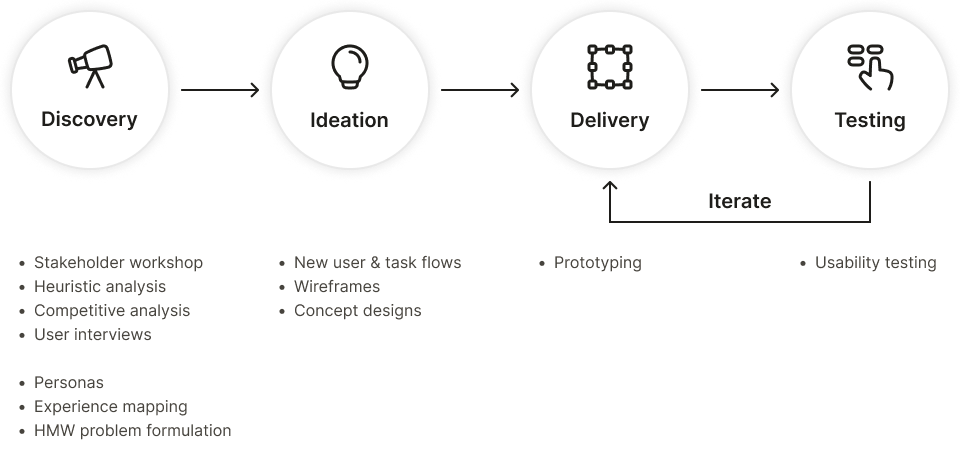
The UX process

Discovery

Stakeholder workshop

I had the initial meeting with the fundraising manager to discuss their goals, pain points and expectations.

The main takeaways were:

I’ve noticed that my student callers, especially the newly trained, often experience awkward pauses while flipping through the script binder during calls. It slows them down and affects their confidence.

-The Fundraising Manager

We have a new campaign coming up soon, and I’m trying to come up with ways to make our workflow more efficient.

-The Fundraising Manager

We defined the following problem to solve:

How might we make the call process more efficient so student callers can focus on the conversations without distractions?

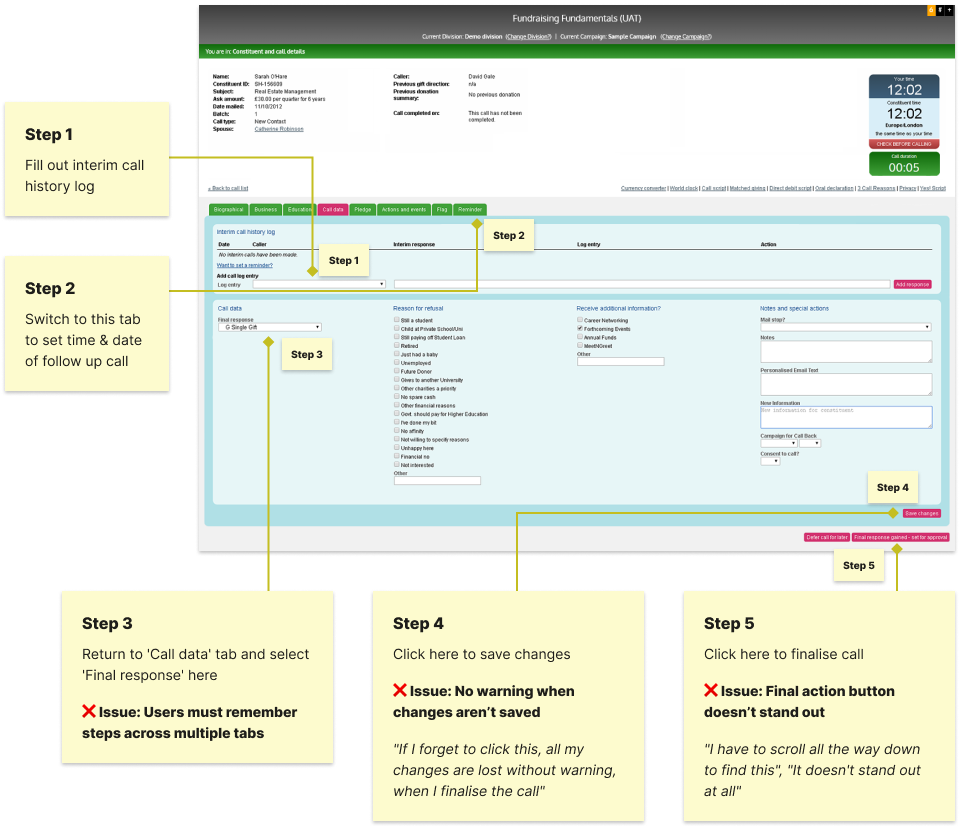
Heuristic analysis of the existing call screen

I completed the core tasks on the call screen while comparing it against established usability principles to identify and visualise the potential usability issues that I could solve.

Key findings & insights:

  • Fragmented information and actions: important details and actions were scattered across the screen, making them difficult to find.
  • Inefficient task flows: users had to click through multiple tabs to complete basic tasks.
  • Low action visibility: important actions (e.g. finish call) didn’t stand out visually, increasing cognitive load and slowing task completion.
  • Easy to lose changes: changes had to be saved manually and there was no warning when leaving without saving.

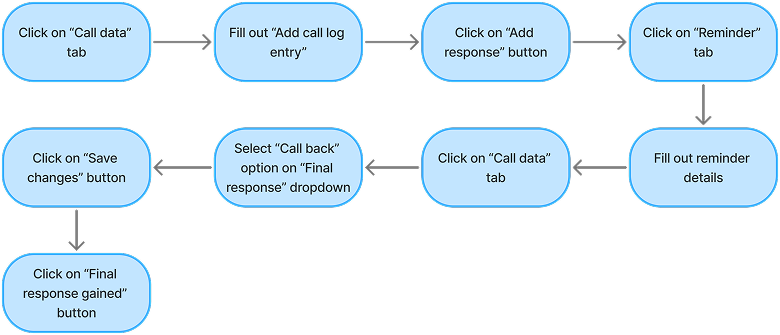
Example task: reschedule a call

Competitive analysis

To assess how competing products manage on-screen scripting, I collected examples of competitor UIs by exploring support materials on their websites and reviewing demo and tutorial content on YouTube.

The products that I reviewed included:

Industry-standard features:

  • Dedicated script panel at the centre of the screen, stays visible during calls
  • Script branching via buttons that link to other script sections
  • Merge fields that auto-fill with data (e.g. caller name, constituent name, etc.)

Interviewing student callers

I spoke with five student callers to validate the campaign manager’s assumptions and gain a clearer understanding of their workflows and the challenges they encountered.

I asked them to walk me through their canvassing process while using the existing call screen as a prop.

Online interviews

Participants: 5

Duration: 40-45 min

Key findings & insights

  • Poor learnability: new student callers described the call screen as “complex and difficult to learn”. They said they often forgot where things were, which slowed them down.
  • Reduced productivity: experienced callers noted that constituent info, call/donation records and call logging actions were “scattered all over the screen” and “hidden under random tabs”, making them slow to find.
  • Awkward pauses and flustering during calls were often due to “losing place on the script” and “struggling to quickly find the right page to read out.” There were 35 donation refusal scripts to pick from while under pressure.

Interview with the fundraising manager

I interviewed the fundraising manager to look over the script binder and discuss how they create and organise scripts for different campaigns. These insights helped shape the script functionality later on.
Face-to-face interview

Participants: 1

Duration: 45 min

Key findings & insights

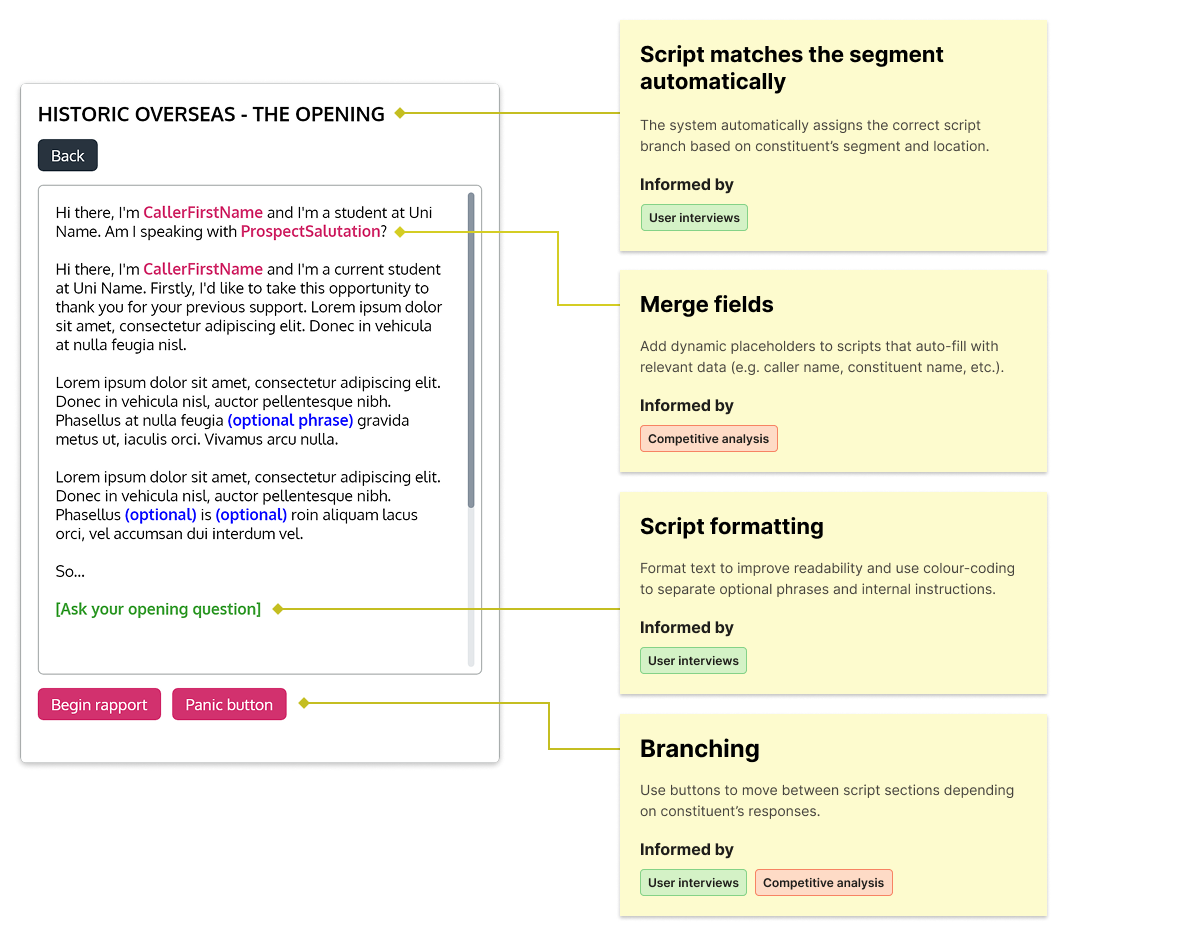
  • Tailoring the script to different audiences: “Tone and details need to vary depending on the constituent’s segment and location” (recent graduate, international alum, major donor, etc.).
  • Branching is crucial: “The conversations are not linear. We use different script branches depending on how the constituent responds.”
  • Colour-coding the script: “I find it helpful to use different colours to separate the main script, optional phrases, and internal caller instructions (e.g. pause for response) so callers can quickly understand what’s what during a live call.”

User personas

I created two user personas to present insights from the interviews and help me stay focused on goals, needs, and challenges of our users.

Grace

Student Caller

Grace is a university student hired part-time to make fundraising calls

Goals:
  • Complete calls efficiently and meet targets
  • Review constituent’s profile to prepare for the call
  • Build rapport with constituents
  • Handle objections and refusals professionally
  • Log donations and call outcomes
Needs:
  • User-friendly call script
  • Quick access to constituent details and call/gift history
  • A simple, clear method for logging donations and call outcomes
Problems:
  • Using a paper binder for the script makes it difficult to navigate and disrupts flow
  • Fragmented call screen layout makes key actions and information hard to locate
  • The call screen’s visual complexity makes it challenging to learn

James

Fundraising Manager

James is a manager who plans and organises fundraising campaigns, manages student callers and oversees campaign performance

Goals:
  • Run efficient, high-performing fundraising campaigns
  • Support and motivate student callers in meeting targets
  • Ensure accurate tracking of donations and call outcomes
  • Continuously improve call scripts, workflows, and training
Needs:
  • A quick way to add and update call scripts across the entire team
  • A script that branches depending on constituent’s segment, location and responses
  • Colour-coding to separate script and internal instructions
  • A clear call outcome logging system to minimize mistakes by his team
Problems:
  • Difficult to update paper scripts and ensure every caller uses the latest version
  • Training new callers is time consuming due to complexity of the tools

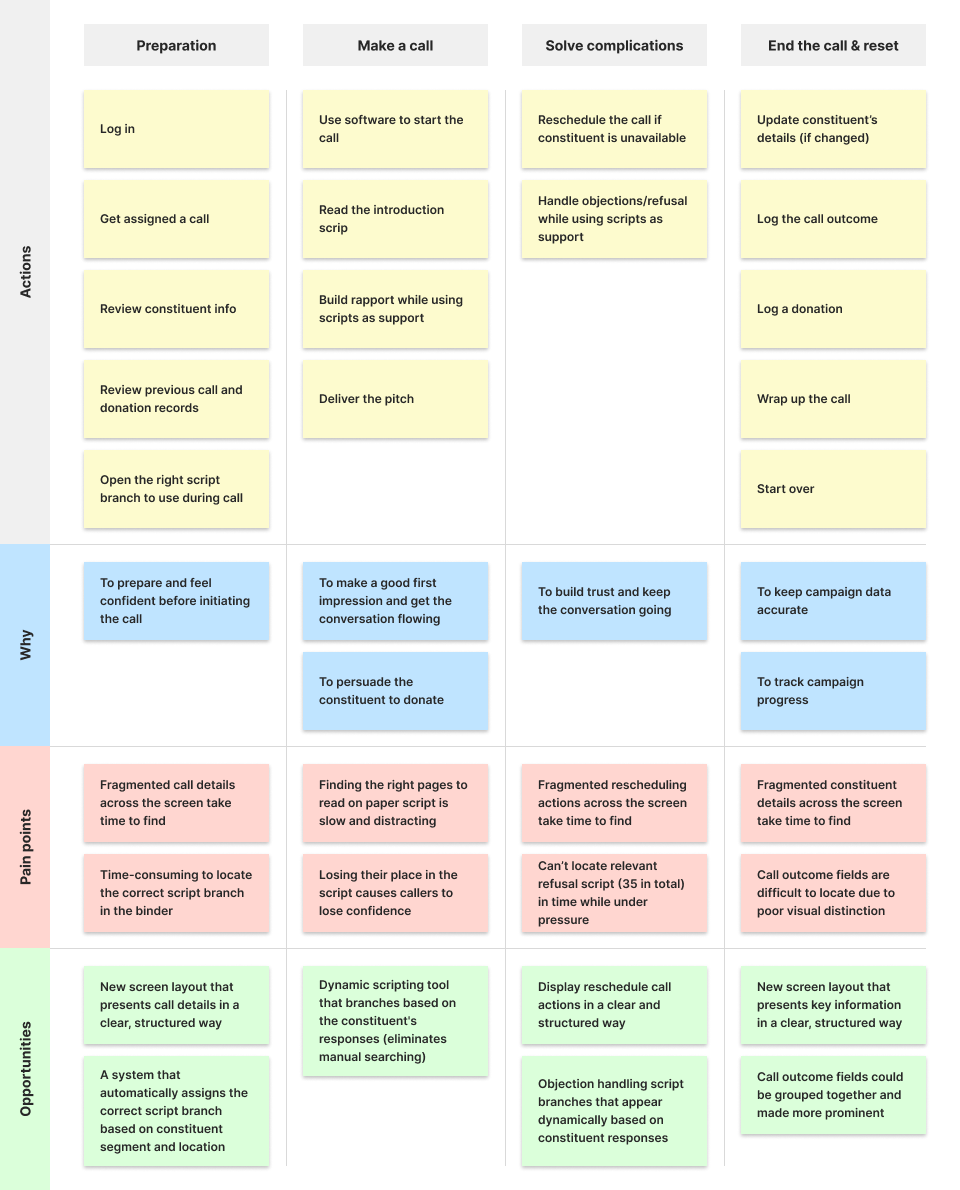
Experience mapping the canvassing process

I mapped the student callers’ canvassing process based on insights from user interviews. This helped me visualise key data, which was later used to improve user flow and align the new call screen layout with caller workflow.

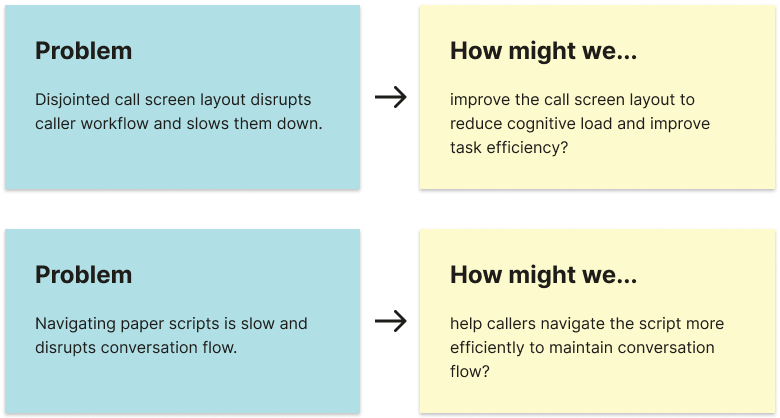
HMW problem formulation

I translated my findings into opportunity statements to guide ideation stage, using the How Might We (HMW) method to encourage open-ended thinking without implying specific solutions.

Ideation

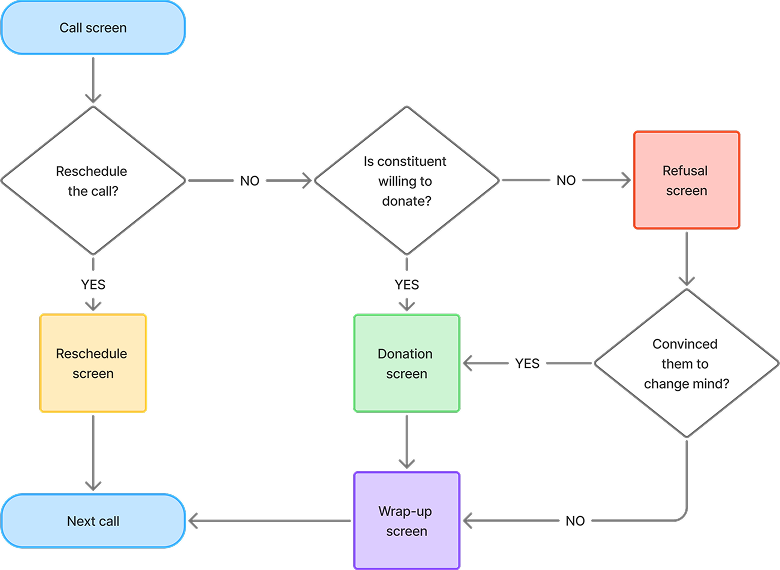
Improved user flow structure

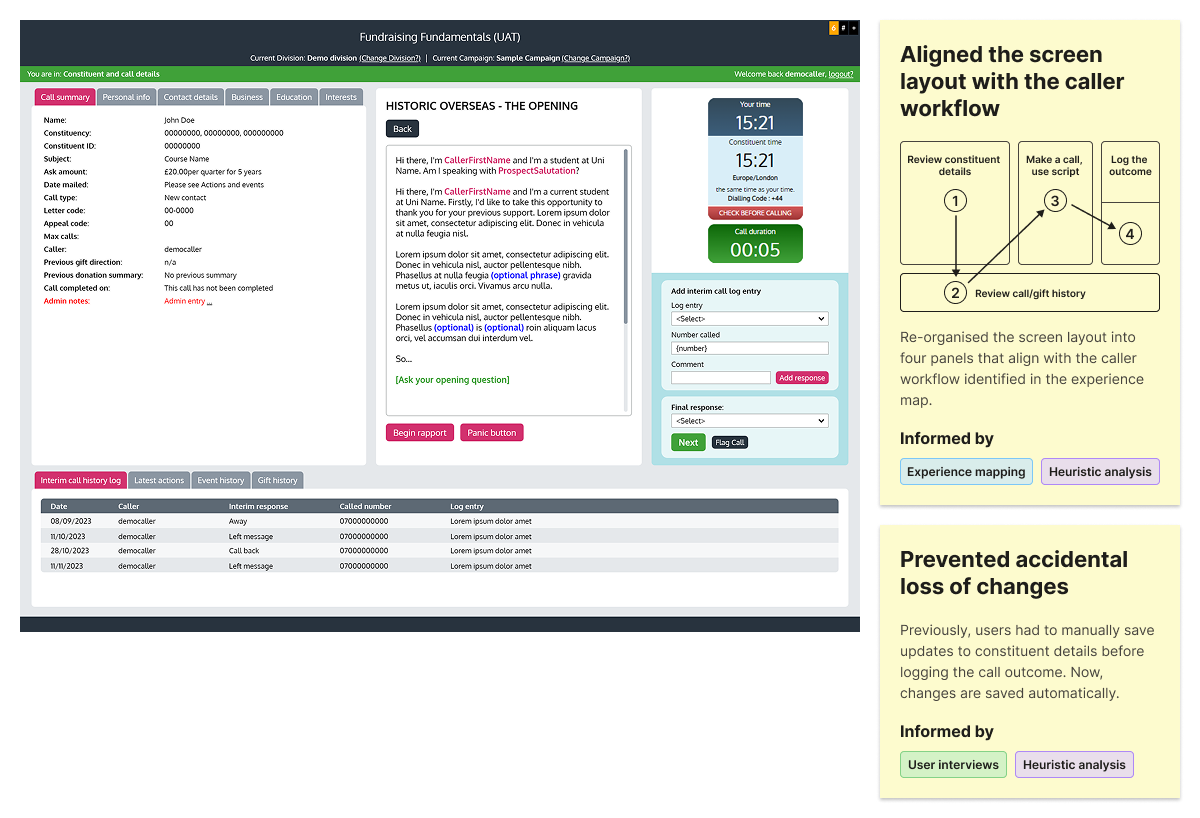
To reduce the cognitive load, I proposed separating core tasks into dedicated screens arranged in a sequence that aligned with the canvassing workflow captured in the experience map.

Streamlined task flows

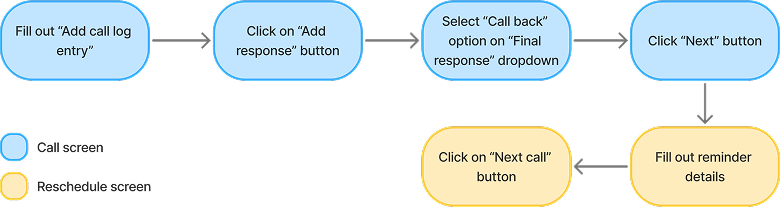
The addition of dedicated screens reduced the number of steps needed to complete the tasks.

Old ‘reschedule call’ task flow (9 steps)

New ‘reschedule call’ task flow (6 steps)

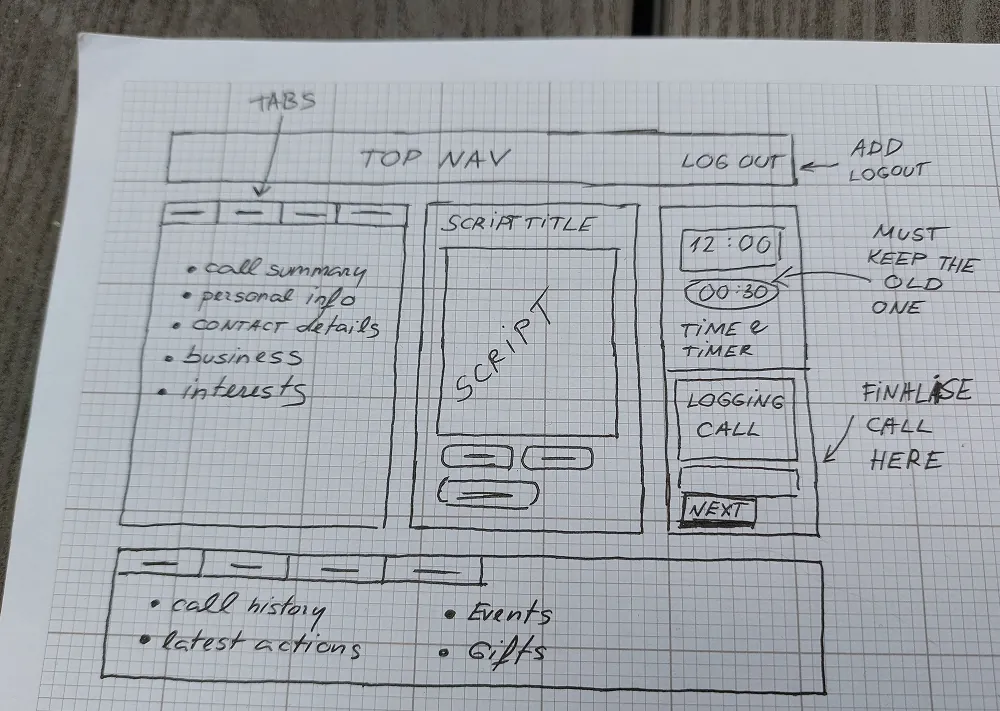
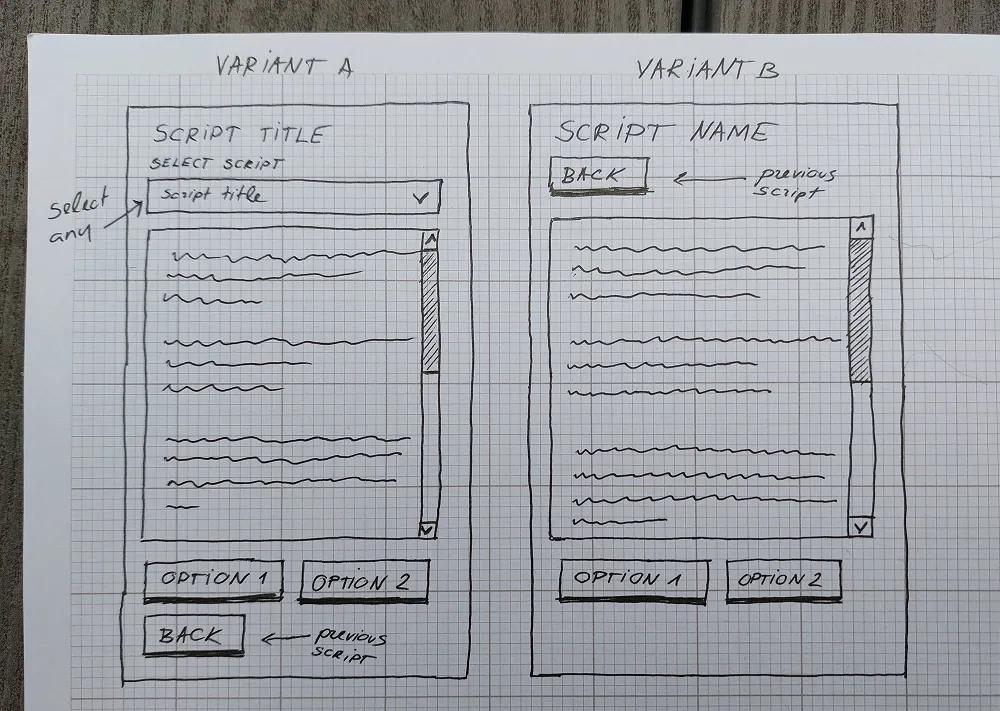
Wireframe sketches

I used hand sketching to explore potential layouts. It was a quick way to share ideas and get feedback before spending more time creating polished versions using digital tools.

Concept designs

Next, I picked the best hand sketched ideas and turned them into digital designs using Figma. Several iterations were presented to the team and stakeholders before I continued with prototyping.

Design limitations

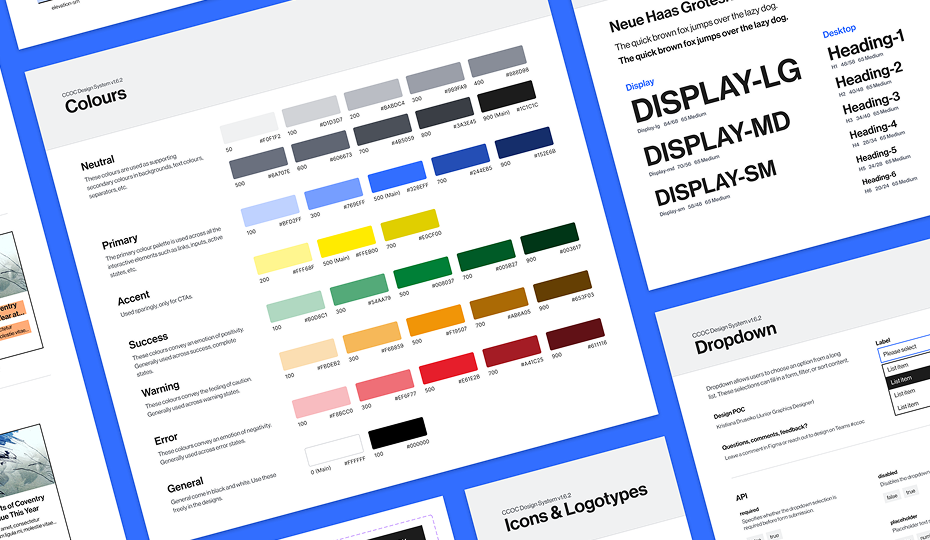
To meet the budget and time constraints, my approach was to reuse the existing UI design as much as possible rather than create a new one from scratch.

New call screen layout

Script functionality

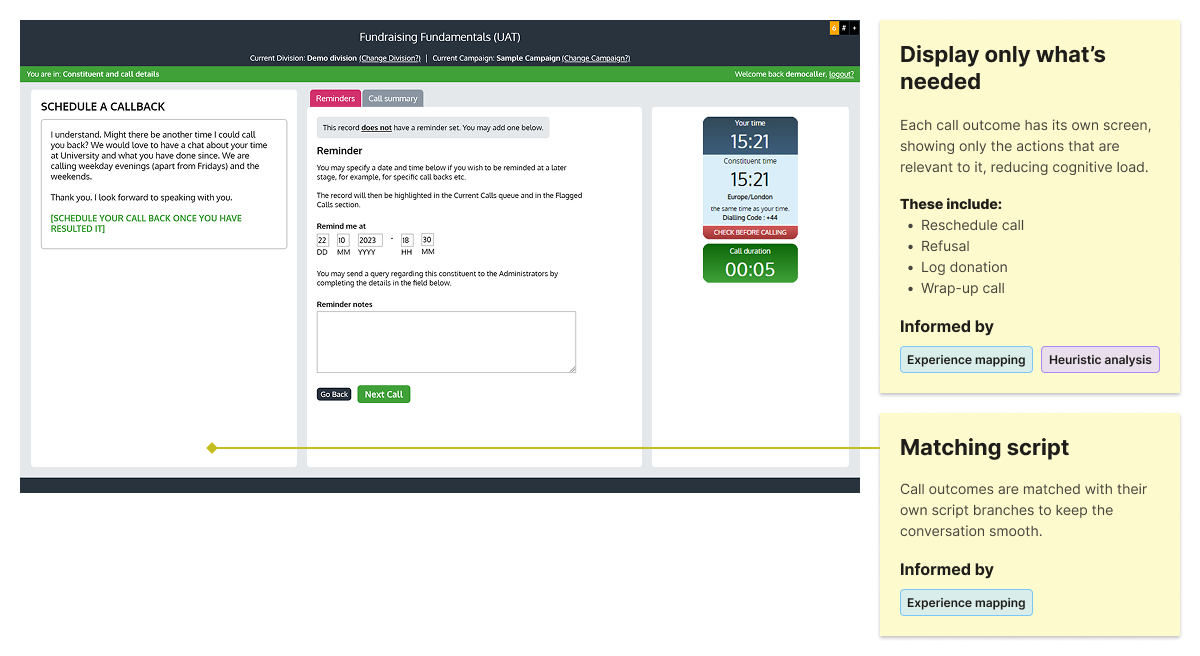
Separate screens for each outcome

Delivery

Prototyping & user testing

I used Figma’s prototyping tools to add interactivity and ran usability testing with the five student callers I had interviewed earlier.

The goal was to validate that the redesigned layout and on-screen scripting were easy to use and helped callers complete calls faster compared to the existing interface.

How I tested

We simulated calls and I asked participants to complete three outcome scenarios (donation, refusal, and call rescheduling) using both the existing call screen with the paper script and the redesigned screen.

Due to time constraints, participants completed all three scenarios on the redesigned screen, but only one or two on the existing screen. This approach allowed me to prioritise validating the redesign while still collecting data to compare task efficiency with the existing interface.

What I measured

  • Time to complete each of the three scenarios
  • Errors and moments of confusion
  • Confidence level, noting any hesitation or verbal uncertainty

Key findings & insights:

Participants could complete simulated calls faster on the redesign

Usability testing showed that streamlined task flows and the introduction of on-screen scripting reduced the number of steps needed to complete calls, helping participants move through scenarios more quickly.

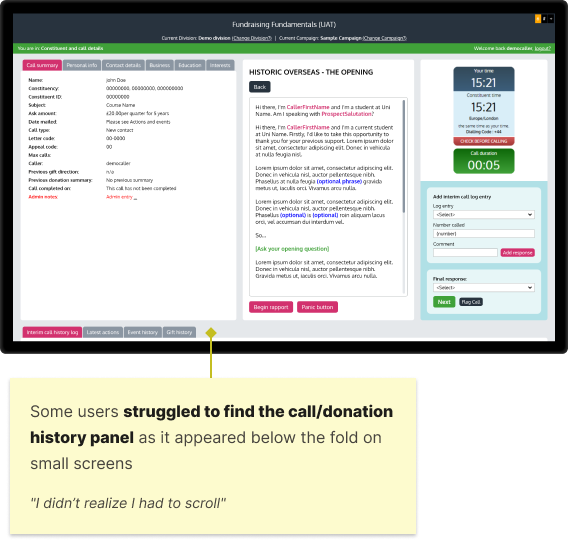
Participants overlooked the call/donation history panel

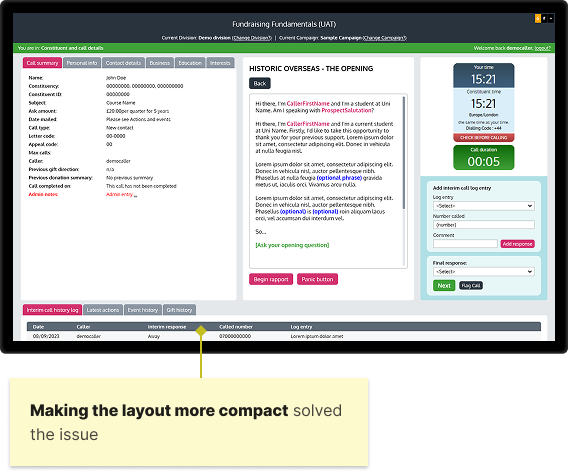
Some users struggled to find the call/donation history panel on the redesigned call screen as it appeared below the fold on small screens.

This is how I fixed it:
Before
After

1366 x 768
(2nd most popular desktop size in 2023)

What participants said after testing

The new interface

The separate panels on the new screen made it way quicker to find what I needed.

I like that it was easier to see who I was calling. I think that would help me prepare better.
The new script feature
I didn’t have to waste time searching through pages. The new script just showed me exactly what I needed.
I get anxious when I can’t find the right script during my calls. With the new one, it was much easier and I didn’t get lost.

Project outcomes

Student callers reported feeling more confident and focused

User research found that student callers often lacked confidence and focus during calls. This was largely due to difficulty finding the right script during calls and quickly accessing constituent information before calling, which sometimes stopped them from preparing properly.

I designed an on-screen script that automatically branched based on constituent’s segment, location and responses during the call, removing the need to search for the right script manually. I also restructured constituent information so callers could find key details more quickly.

Usability testing and post-launch feedback showed that these changes reduced distractions, helping callers stay confident and fully focused on conversations.

The redesign improved learnability and caller task efficiency

In user interviews, student callers described the call screen as complex, fragmented, and difficult to learn. Constituent information, call/donation records and call logging actions were described as “scattered all over the screen”, making them slow to find.

I streamlined user and task flows to reduce cognitive load and the number of clicks needed to complete tasks. I also reorganised the screen layout to better align with the caller workflow and restructured constituent information and call/donation logs to make them easier to scan.

Usability testing showed that the streamlined interface and automated on-screen scripting helped callers complete calls faster. After launch, the fundraising manager observed quicker onboarding for new student callers, alongside an estimated 20% increase in the number of calls completed each day during the new campaign.